
video-transcriber
I first wrote Video Text Extractor for English homework. I wanted a transcript I could read and organize without replaying the whole video. I added embedded subtitle extraction, visual OCR, batch processing, and subtitle export. The desktop app now supports local transcription and a workspace for listening back and correcting text.
From recording to draft
SenseVoice is the default for Chinese speech. It runs locally after the model is downloaded and outputs text with timestamps for roughly 20-second segments. Those timestamps mark segments, not individual sentences. Use local Whisper for other languages or when you need SRT or VTT. In Whisper, choose English and Transcribe for an English recording; Translate to English is for speech in other languages.
Listen and edit in the same window
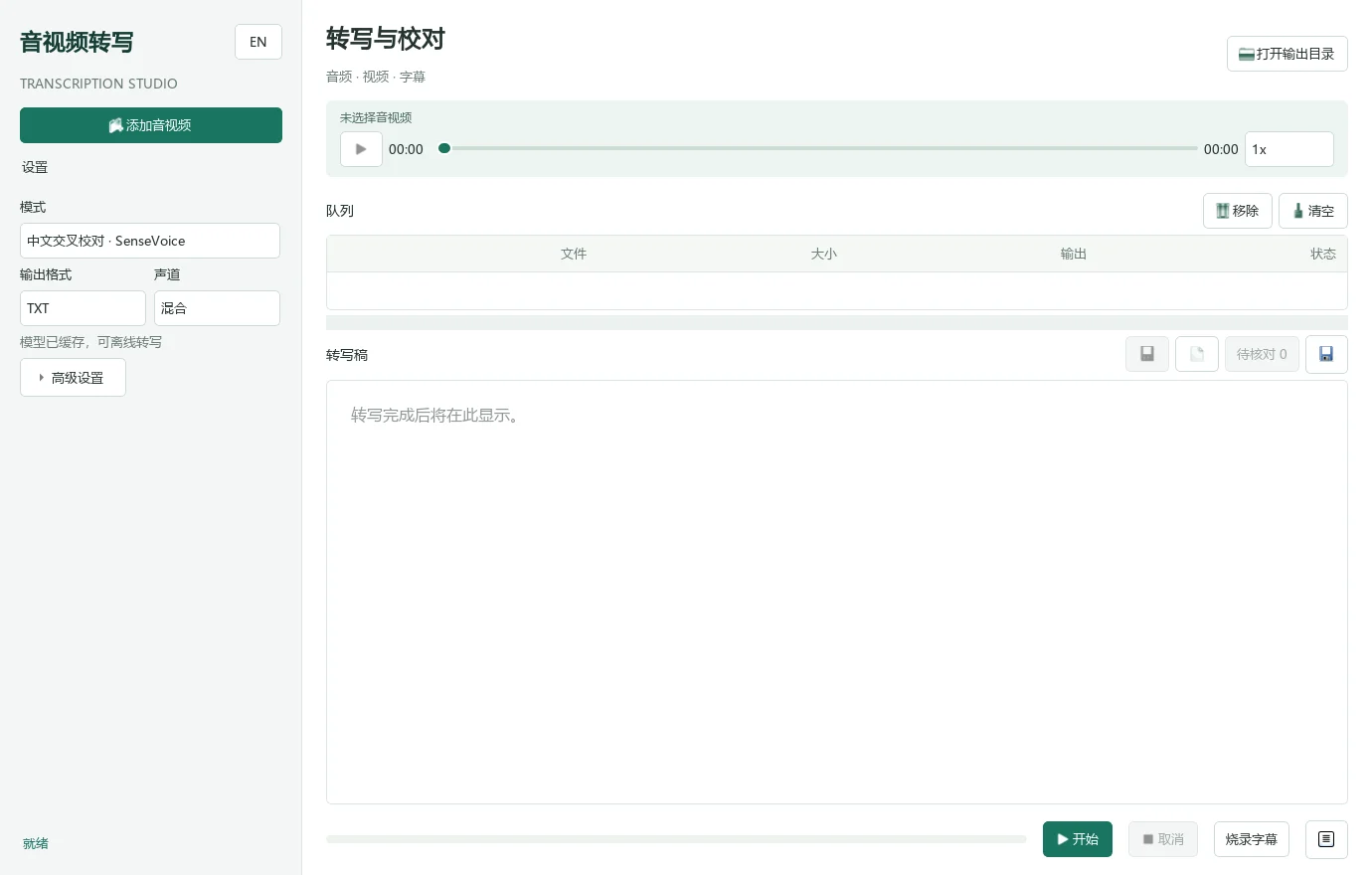
The PySide6 app lets you queue inputs, drag in files, and run up to four tasks in parallel. You can click a timestamp to jump to the audio, skip by three seconds, or adjust playback from half speed to double speed. The editing and reading views use the same draft. Reading mode hides time labels and gives paragraphs more space.
Follow text highlights the segment under the playhead without moving the cursor or rewriting the transcript. It pauses while edits are unsaved, text is selected, or Find is open. You can also flag passages for a second listen. Those flags mark places to review, and unflagged text can still contain mistakes.
Saving and recovering work
The app backs up unsaved drafts locally about every two seconds. If the original file changed or is gone, recovery can save a separate copy. Saving checks for external edits and validates timed formats such as SRT and VTT. Re-running a job with the same input gets a fresh output name.
Choosing a mode
| Mode | What it reads |
|---|---|
| SenseVoice | Chinese speech, with segment timestamps in TXT |
| Local Whisper | Multilingual speech, with TXT, SRT, VTT, and JSON |
| OpenAI API | Audio sent to an endpoint you configure |
| Embedded Subtitles | Subtitle tracks already stored in the video |
| Visual OCR | Text visible in the video itself |
| Auto | Embedded subtitles first, then local Whisper |
Long recordings are decoded in chunks. Auto mode uploads audio only if you enable cloud fallback and confirm it before that batch. Embedded tracks and text burned into the picture use separate modes.
Setup
python -m pip install -r requirements.txtpython tools/setup_sensevoice.pypython video_text_gui.pyWindows users can also launch start_video_text_gui.bat. The project uses ffmpeg for audio and video. Subtitle inspection benefits from ffprobe, and Python OCR needs Tesseract and the relevant language packs.